
The Windows on-screen keyboard is often automatically triggered by a feature called “Tablet Mode.” This guide will show you how to disable it.
This guide applies specifically to Windows 10 systems.
1. Open the Action Center
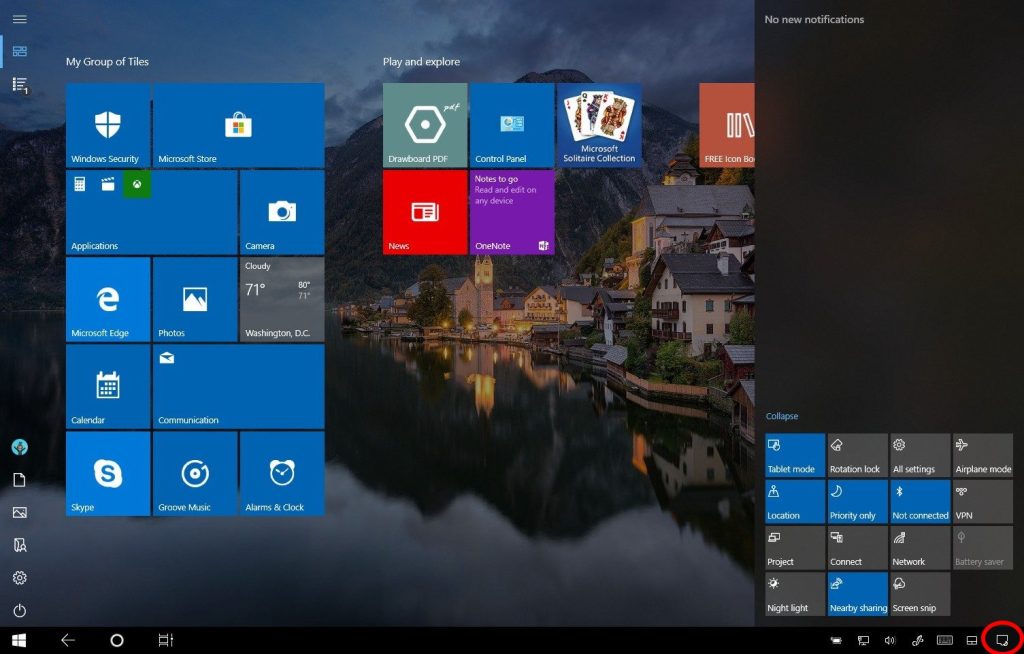
The first step is to open the Action Center. Click the speech bubble icon located in the very bottom right corner of your taskbar.
2. Disable Tablet Mode
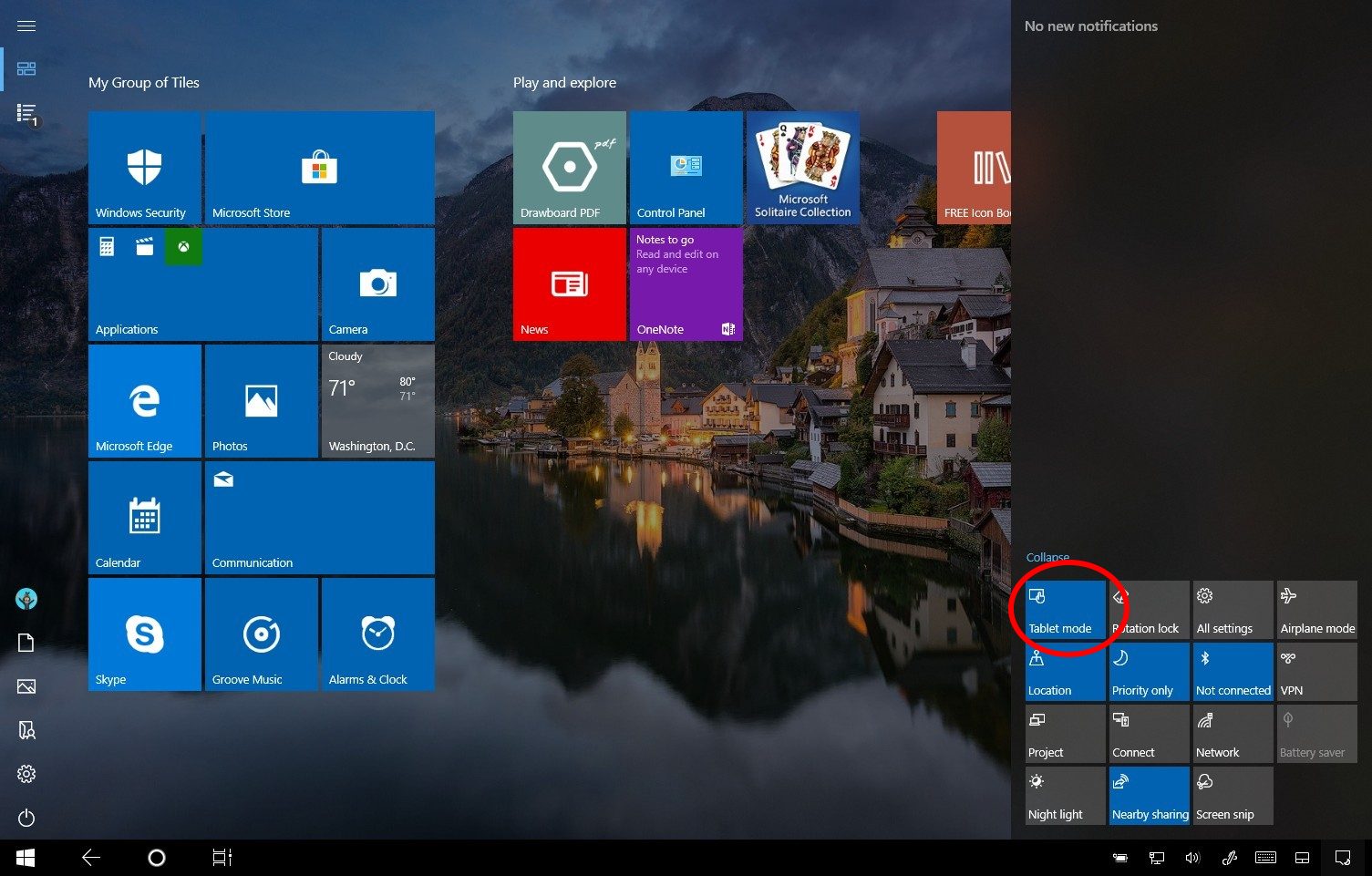
Click the “Tablet mode” tile to ensure it is disabled. The tile should appear gray or unlit, indicating that it is turned off. If it is colored, it is currently active and you will need to click it to disable it.
3. Verify the Issue is Resolved
After disabling Tablet Mode, the on-screen keyboard should no longer appear automatically. You can test this by clicking into a text field or application to confirm the keyboard does not pop up.
4. Contact Support
If you’ve followed all the steps in the guide above and the issue persists, please contact Support: (603) 994-2222